Claude Code Setup: CLAUDE.md, MCPs, Skills (Definitive Guide)
 Dmytro Chaban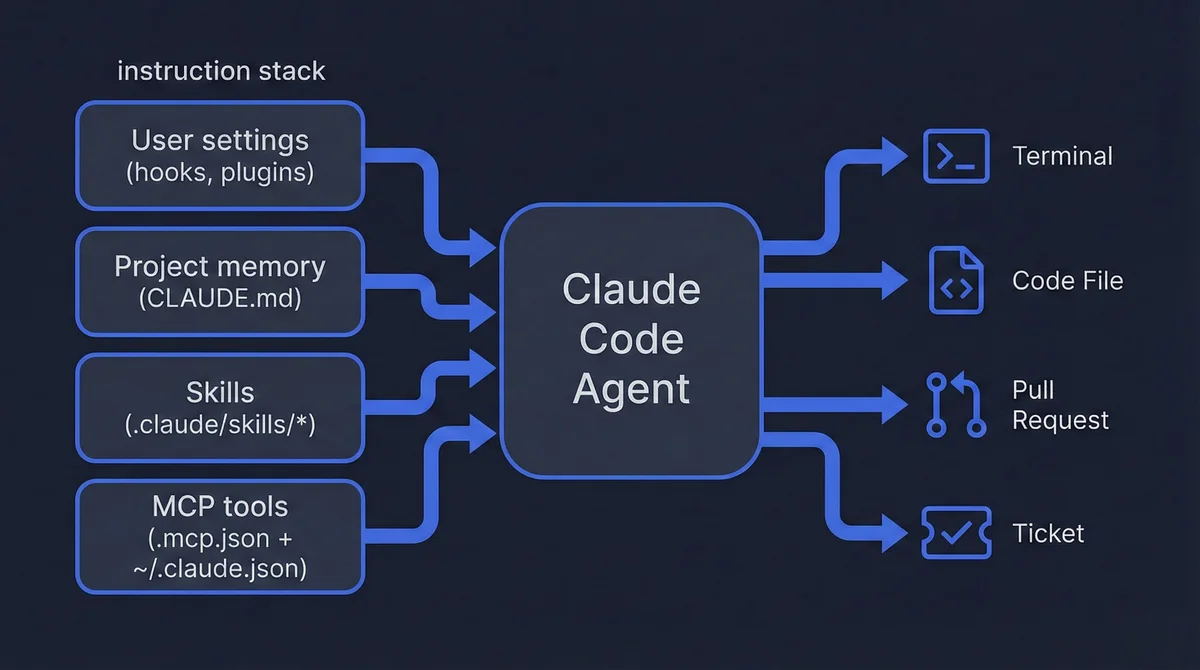
You installed Claude Code. Now the annoying part: multiple config files, two places for instructions, and tools that sometimes do not show up when you expect them.
This is the “clean setup” I wish everyone started with: a small CLAUDE.md, repeatable procedures in skills, external tools via MCP, and a couple of quality-of-life hooks.
Key Takeaways (TL;DR)#
- Keep
CLAUDE.mdshort and repo-specific. If it turns into a manifesto, it will be ignored. - Put repeatable workflows into skills. One clear
SKILL.mdbeats 300 lines of “tips” inCLAUDE.md. - Connect tools through MCP, not copy-pasted scripts. Start with GitHub. Add Jira/Confluence when you need it.
- Use a local settings file for personal preferences. Hooks, sounds, “always thinking”, and plugin toggles should not pollute the repo.
- Never commit tokens. Put secrets in env vars or a secrets manager. Rotate, do least privilege, move on.
What Is Claude Code (and what it is not)?#
Claude Code is a coding agent that can operate inside a repository: read files, edit code, run commands, and follow project instructions.
What it is not: a magic autocomplete. If you do not give it clear instructions and a safe tool boundary, you will get random outcomes and a repo full of half-finished changes.
The mental model that makes Claude Code predictable is simple:
- Instructions (what to do, how to behave, what to avoid)
- Tools (what it can access, locally or via MCP)
- Guardrails (what it must not touch, and how it should verify work)
If you want the deeper reasoning behind this, read System Prompts as Infrastructure.
If you want a practical framework for deciding what context goes where, this helps: A Developer’s Guide to the 5 Essential Context Types for AI.
Step 1: Install Claude Code (macOS, Windows, Linux) and Verify It Works#
Official docs: Claude Code quickstart
Option A (recommended): native install (no Node required)#
macOS, Linux, WSL:
curl -fsSL https://claude.ai/install.sh | bash
Windows PowerShell:
irm https://claude.ai/install.ps1 | iex
Windows CMD:
curl -fsSL https://claude.ai/install.cmd -o install.cmd && install.cmd && del install.cmd
Option B: Homebrew#
brew install --cask claude-code
Option C: WinGet (Windows)#
winget install Anthropic.ClaudeCode
First run + verification#
After installing, go to a project and start Claude Code:
cd your-project
claude
If Claude Code asks you to authenticate, run /login.
Then verify the CLI is reachable and run diagnostics:
claude --version
claude --help
claude doctor
Windows setup options (WSL vs native)#
On Windows, the official docs support:
- Claude Code inside WSL (WSL 1 or WSL 2)
- Claude Code natively with Git for Windows
If you want the full OS requirements list, see: Claude Code setup
Install troubleshooting checklist#
command not found: checkPATH, restart shell, verify the binary exists.- CLI starts but behaves weirdly: run
claude doctorand read the output. - Multiple installs: uninstall the old one first, then reinstall cleanly.
The Instruction Stack: Where Claude Code “Gets Its Brain”#
If your Claude Code setup feels inconsistent, you are almost always mixing instruction sources without realizing it.
Here’s the clean split:
- Project instructions: what to do in this repo (this is
CLAUDE.md) - Reusable workflows: what to do in a specific task type (these are skills)
- Personal preferences: what you like as a developer (local settings, hooks)
- External tools: what Claude can call into (MCP servers)
The goal is not to make Claude “smarter”. The goal is to make it less ambiguous.
Step 2: Generate CLAUDE.md with /init (then keep it minimal)#
CLAUDE.md is where you tell Claude Code how to work in this repository.
You do not write it from scratch.
Inside Claude Code, run:
/init
Claude will generate a starter CLAUDE.md for your repo. Your job is to review it, delete the fluff, and keep only what actually improves outcomes.
Two practical tips from the official docs:
- Use
/memoryinside Claude Code to review what memory files are being applied. - Use
@path/to/fileto pull specific files into context when you need them (instead of pasting).
If CLAUDE.md is longer than your README, it is probably doing the wrong job.
Official locations for Claude Code memory files:
- Project memory:
./CLAUDE.mdor./.claude/CLAUDE.md - Project rules:
./.claude/rules/*.md - User memory:
~/.claude/CLAUDE.md - Project-local personal memory:
./CLAUDE.local.md(auto-added to.gitignore)
These are documented in Anthropic’s Claude Code memory guide.
Official docs: Claude Code memory
What belongs in CLAUDE.md (10 bullets max)#
- What this repo is and who it is for
- The commands that actually matter (dev, build, test, format)
- “Start here” pointers (the 3 to 6 files Claude should read first)
- The architecture map (major directories and boundaries)
- Hard constraints (for example: static export, no server actions)
- Non-obvious conventions (naming, imports, generated code, migrations)
- “Do not touch” boundaries (secrets, production configs, regulated data)
- How you want changes verified (tests, typecheck, lint)
What does not belong in CLAUDE.md#
- Long runbooks and onboarding docs
- Full style guides
- Secrets or tokens
- Vague instructions like “be helpful” or “write high quality code”
That is enough. Everything else should move into skills.
If you are building an AI-friendly repo from scratch, this post is a good complement: AI-Ready Codebase: Claude & Cursor Integration.
Step 3: Connect External Tools with MCP (GitHub, Jira, Confluence)#
MCP (Model Context Protocol) is how Claude Code talks to external services in a structured way. Think of it like: “plugins, but explicit and inspectable”.
Official docs: Claude Code MCP
MCP servers have two configuration files, and three scope modes:
- Config files:
- Project file:
./.mcp.json - User file:
~/.claude.json(on Windows,~maps to%USERPROFILE%)
- Project file:
- Scope modes (the
--scopeflag):local(default): only for you, only in the current project directory (stored inside the user file, keyed by project)project: shared via.mcp.jsonuser: global for you across projects (stored in the same user file)
One detail that trips people up: “local” for MCP is about scope, not file location. Local-scoped MCP servers still live in ~/.claude.json. “Local project settings” live in .claude/settings.local.json.
Where MCP config lives (real paths)#
- Project scope (all OS):
./.mcp.json - Local + user scope:
- macOS/Linux:
~/.claude.json - Windows:
%USERPROFILE%\.claude.json(same file as~/.claude.json, just expanded)
- macOS/Linux:
Yes, that is a single file named .claude.json in your home directory (not ~/.claude/claude.json). On Windows, that’s usually C:\Users\YourName\.claude.json.
Path resolution note: ~ expands to your home directory in Unix-like shells and PowerShell. In Windows CMD, use %USERPROFILE%.
Quick path checks (read-only):
macOS/Linux:
pwd
ls -la .mcp.json
ls -la ~/.claude.json
Windows PowerShell:
Get-Location
Test-Path .mcp.json
Test-Path "$HOME/.claude.json"
How to confirm what config is actually in effect (no guessing)#
When MCP feels broken, do this in order:
- Validate JSON syntax (one trailing comma can ruin your day).
- Check whether your repo has
.mcp.json. - Check
~/.claude.jsonfor local-scoped or user-scoped servers. - Use the Claude CLI to inspect MCP state:
claude mcp list
If you see no servers, you did not configure any in a scope Claude is reading, or they are blocked by settings.
Inside Claude Code, you can also check status with:
/mcp
MCP troubleshooting matrix (fast fixes)
| Symptom | Likely Cause | Command to Run | Fix |
|---|---|---|---|
| /mcp shows no servers configured | Wrong scope file or no server in active scope | claude mcp list | Add server in ./.mcp.json (--scope project) or in ~/.claude.json (--scope local/--scope user). |
| Invalid JSON in .mcp.json or ~/.claude.json | Trailing comma or broken object | cat .mcp.json && cat ~/.claude.json | Fix JSON syntax, then rerun claude mcp list. |
| Server starts but tools fail | Missing env var or wrong token scope | echo $GITHUB_PERSONAL_ACCESS_TOKEN (PowerShell: $env:GITHUB_PERSONAL_ACCESS_TOKEN) | Set required env vars in your shell/session and verify token permissions. |
| MCP server command not found (uvx/npx) | Runtime dependency missing | uvx --version && npx --version | Install the missing runtime, then rerun claude mcp add ... |
Quick-start: add a GitHub MCP server#
Claude Code supports adding stdio servers from the CLI. The basic syntax is:
claude mcp add --transport stdio <name> -- <command> [args...]
Example: add the popular GitHub server:
claude mcp add --transport stdio --scope project github -- npx -y @modelcontextprotocol/server-github
Windows users: for local MCP servers that use npx, wrap it with cmd /c:
claude mcp add --transport stdio --scope project github -- cmd /c npx -y @modelcontextprotocol/server-github
If you prefer manual config (or you want to review before committing), create .mcp.json in your repo root:
{
  "mcpServers": {
    "github": {
      "command": "npx",
      "args": ["-y", "@modelcontextprotocol/server-github"],
      "env": {
        "GITHUB_PERSONAL_ACCESS_TOKEN": "PASTE_TOKEN_HERE"
      }
    }
  }
}
Important: do not commit real tokens. Prefer setting GITHUB_PERSONAL_ACCESS_TOKEN as an environment variable instead of putting it into a file.
Then set secrets via env vars, not in git. If you need local convenience, use an .env file and keep it out of git.
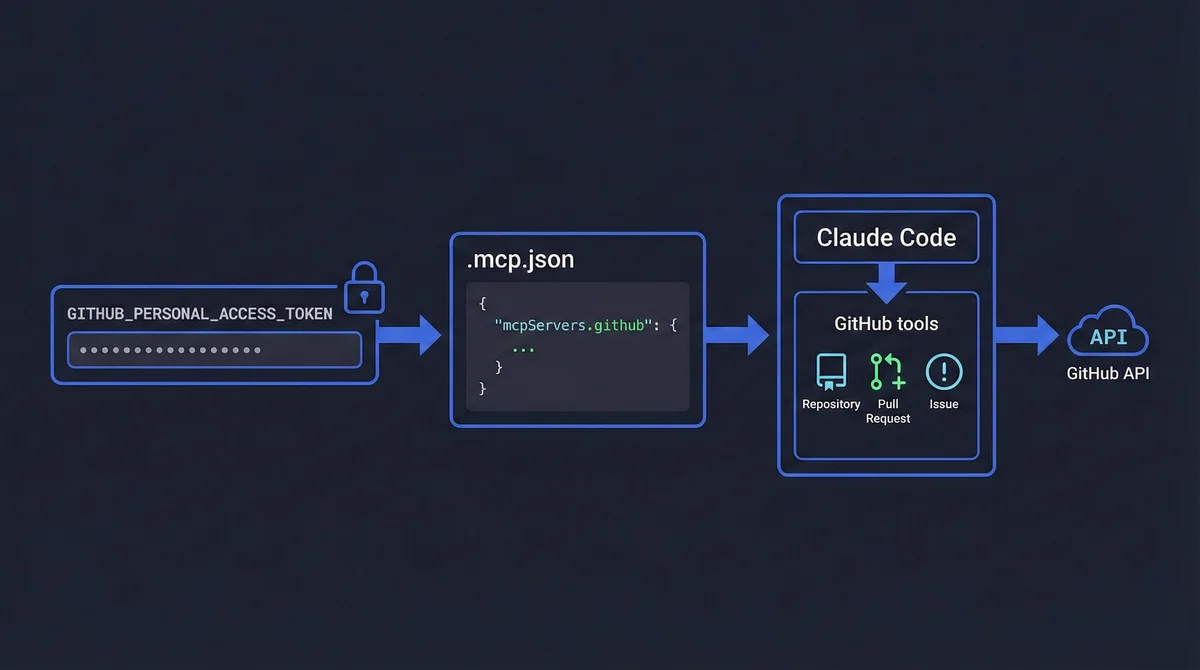
On Windows, you can set env vars via PowerShell:
$env:GITHUB_PERSONAL_ACCESS_TOKEN = "PASTE_TOKEN_HERE"
For a persistent env var (new shells), you can use:
setx GITHUB_PERSONAL_ACCESS_TOKEN "PASTE_TOKEN_HERE"
Example: Atlassian MCP (Jira + Confluence)#
Put this in .mcp.json (project scope) or ~/.claude.json (user/local scope). Notice how everything sensitive stays in environment variables:
{
  "mcpServers": {
    "mcp-atlassian": {
      "command": "uvx",
      "args": ["mcp-atlassian"],
      "env": {
        "JIRA_URL": "https://your-company.atlassian.net",
        "JIRA_USERNAME": "[email protected]",
        "JIRA_API_TOKEN": "PASTE_TOKEN_HERE",
        "CONFLUENCE_URL": "https://your-company.atlassian.net/wiki",
        "CONFLUENCE_USERNAME": "[email protected]",
        "CONFLUENCE_API_TOKEN": "PASTE_TOKEN_HERE"
      }
    }
  }
}
Do not commit this with real tokens. Ever.
If MCP itself is new to you, this primer is still useful (even though it is about a different CLI): Unlock Gemini CLI’s Full Potential with MCP.
Step 4: Create Skills (Reusable Playbooks Claude Can Follow)#
If a workflow is repeatable, multi-step, or expensive to get wrong, put it into a skill.
In practice, a good skill is:
- specific (one job)
- testable (clear success criteria)
- safe (explicit boundaries)
- copyable (your teammates can reuse it)
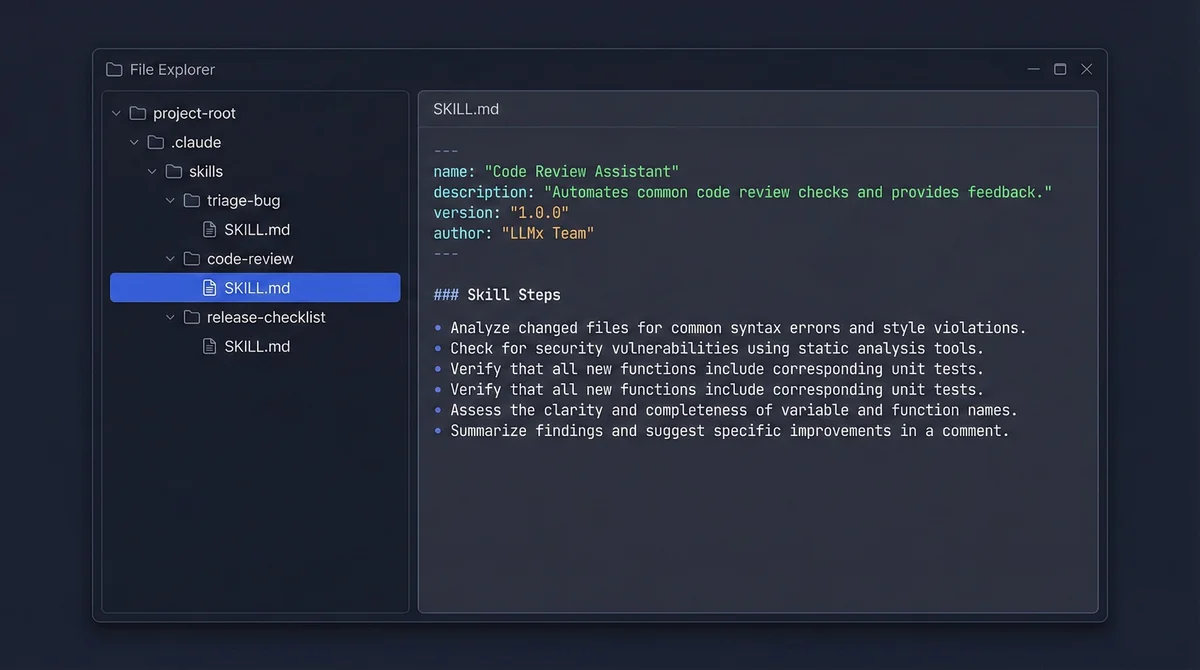
Where skills live#
You can define skills at two levels:
- Project skills:
.claude/skills/ - User skills:
~/.claude/skills/
If you are on a team, put the important ones in the repo. Keep personal hacks in user scope.
Official docs: Claude Code skills
Suggested skill structure#
The only file that must exist is SKILL.md. Treat it like a contract.
Example folder layout:
.claude/
  skills/
    triage-bug/
      SKILL.md
      templates/           # optional
      scripts/             # optional
      references/          # optional
If you standardize prompts and instructions across repos, this gives a reusable pattern: Prompt Versioning for Agentic Systems.
Example skill: triage-bug (minimal but real)#
---
name: triage-bug
description: Triage a bug report and propose a safe fix.
---

## Inputs I need from the user
- What you expected vs what happened
- Steps to reproduce
- Any logs or screenshots
- Repo + branch

## Process
1. Reproduce the issue if possible.
2. Identify the smallest root cause.
3. Propose a fix with minimal blast radius.
4. Add or update a test (if the repo has tests).
5. Summarize what changed and how to verify.

## Guardrails
- Do not refactor unrelated code.
- Do not change formatting across the repo.
- If reproduction is unclear, ask questions first.
Notice what is missing: fluff. It is pure execution.
Step 5: Add Hooks and Plugins in ~/.claude/settings.json#
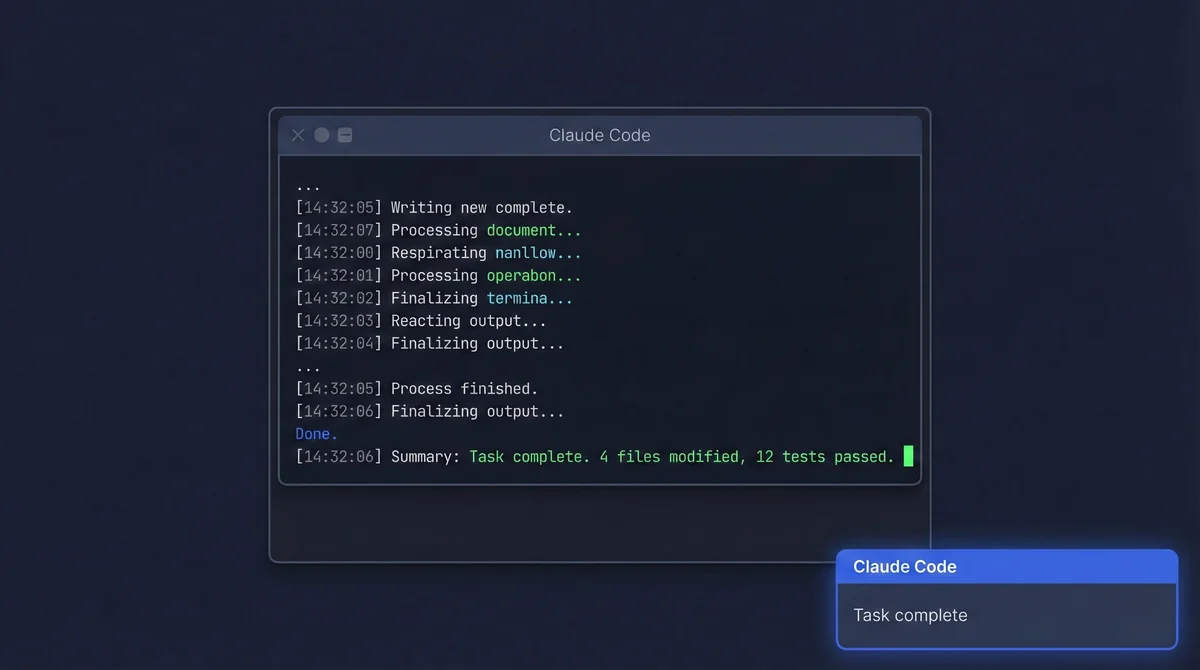
Hooks are pure quality-of-life. The real benefit is not the sound. It is knowing when the agent is done so you stop context-switching every 30 seconds.
Official docs: Claude Code settings
Claude Code supports hierarchical settings files:
- User settings:
~/.claude/settings.json - Shared project settings (committed):
.claude/settings.json - Local project settings (not committed):
.claude/settings.local.json
Here is a working macOS example:
{
  "hooks": {
    "Stop": [
      {
        "hooks": [
          {
            "type": "command",
            "command": "afplay /System/Library/Sounds/Blow.aiff"
          }
        ]
      }
    ],
    "Notification": [
      {
        "hooks": [
          {
            "type": "command",
            "command": "afplay /System/Library/Sounds/Submarine.aiff"
          }
        ]
      }
    ]
  },
  "enabledPlugins": {
    "pyright-lsp@claude-plugins-official": true
  },
  "alwaysThinkingEnabled": true
}
Linux alternatives you can try: paplay or aplay.
Windows: the hook mechanism is the same, only the command changes. Here are options that work without extra dependencies.
Beep:
{
  "type": "command",
  "command": "powershell -NoProfile -Command \"[console]::Beep(800,200)\""
}
System “ding”:
{
  "type": "command",
  "command": "rundll32 user32.dll,MessageBeep"
}
If you want a real toast notification, you can do it too, but it may require a PowerShell module, so I keep it as an optional upgrade, not a default.
Common Mistakes (and how to fix them fast)#
Mistake 1: CLAUDE.md becomes a dumping ground#
Fix: reduce it to a router. Move procedures into skills.
Mistake 2: Tokens end up in git#
Fix: env vars only. Use .env for local development (and keep it out of git), and a secrets manager for teams.
Mistake 3: Skills are vague#
Fix: force skills to specify inputs, outputs, and acceptance criteria. If it cannot be tested, it is not a skill.
Mistake 4: “Why does MCP not show up?”#
Fix: check scopes (local vs project vs user) and run claude mcp list.